How to Speed Up Old Laptop: 12 Proven Ways (2026)
If your laptop takes forever to boot, freezes when you open a browser tab, and generally feels like it’s running through mud, don’t give up on it yet. Learning how to speed up an old laptop can save you hundreds of dollars — most sluggish machines just need the right software tweaks and one or two hardware upgrades to feel like new again.
This guide walks you through 12 proven methods, from free five-minute fixes to the single most impactful upgrade you can make. Let’s get your laptop running fast again.
1. Disable Unnecessary Startup Apps
Every time Windows starts, dozens of apps launch automatically — many of which you don’t need immediately or at all. This is the single most effective free way to speed up an old laptop.
- Press Ctrl + Shift + Esc to open Task Manager.
- Click the Startup apps tab.
- Check the “Startup impact” column — sort by impact to find the worst offenders.
- Right-click any app you don’t need at boot and select Disable.
Common culprits include Microsoft Teams, Spotify, Adobe Creative Cloud, OneDrive, and printer “helper” utilities. Disabling an app at startup doesn’t remove it — it simply stops it from launching automatically. You can always re-enable it later.
2. Free Up Disk Space
A drive that’s over 90% full struggles with virtual memory and temporary files. Start with Windows’ built-in tools:
- Open Settings → System → Storage and turn on Storage Sense to auto-clean temp files.
- Click Temporary files and remove everything Windows marks as safe to delete.
- Search the Start menu for Disk Cleanup, select your drive, and check “Clean up system files” to remove old Windows Update leftovers.
Also open File Explorer and sort your Downloads folder by size — most people find gigabytes of installers and files they forgot existed.
3. Turn Off Visual Effects
Windows 11’s animations, transparency effects, and shadows look nice but consume CPU and GPU resources — especially punishing on older hardware with limited RAM.
- Press Start, type “Adjust the appearance and performance of Windows”, and open it.
- On the Visual Effects tab, select Adjust for best performance.
- Click Apply and OK.
According to Microsoft, these effects “can use additional system resources and can slow down your PC,” particularly on devices with less than 8 GB of RAM. You can turn individual effects back on if you miss them — keep smooth fonts for readability.
4. Uninstall Programs You Don’t Use
Manufacturer bloatware, trial software, old games, and duplicate apps consume background resources. Go to Settings → Apps → Installed apps, click the three dots next to anything you don’t recognize or use, and select Uninstall. Less software means fewer background processes eating CPU and RAM.
5. Update Windows and Drivers
Microsoft regularly ships performance improvements and bug fixes through Windows Update. Go to Settings → Windows Update, click Check for updates, and install everything — then check Advanced options → Optional updates for driver updates. Outdated GPU and chipset drivers in particular cause sluggishness and crashes; grab the latest from your laptop manufacturer’s website or NVIDIA/AMD/Intel directly.
6. Scan for Malware
Malware often runs silently in the background, consuming system resources. Run a full scan with Windows Security (Settings → Privacy & security → Windows Security → Virus & threat protection → Full scan). Removing hidden infections can dramatically improve speed. For extra details on Microsoft’s recommended steps, see Microsoft’s official guide to improving PC performance in Windows, which covers many of these tweaks with step-by-step instructions.
7. Pause OneDrive Syncing (Temporarily)
OneDrive’s automatic cloud sync is convenient but constantly consumes CPU cycles and bandwidth checking for changes. Microsoft itself acknowledges that “syncing can slow down your PC.” Click the OneDrive icon in the system tray, open Help & Settings → Pause syncing, and choose 2, 8, or 24 hours. Test your speed with syncing paused — if it’s noticeably faster, consider syncing manually once a day instead.
8. Set Power Mode to Best Performance
Windows’ power-saving modes throttle your CPU to save battery. If your laptop is plugged in, switch to Settings → System → Power & battery and change Power mode to Best performance. Note this drains the battery faster on battery power, so it’s best reserved for plugged-in work.
9. Add More RAM
If your laptop has 4 GB of RAM, upgrading to 8 or 16 GB is one of the cheapest meaningful upgrades — often under $40 for a DDR4 stick. Check your laptop’s manual (or a site like Crucial’s memory finder) for the correct RAM type and maximum capacity. More RAM means more apps open at once without swapping to disk, which is what causes most “everything is slow” complaints.
10. Upgrade to an SSD — The Biggest Upgrade
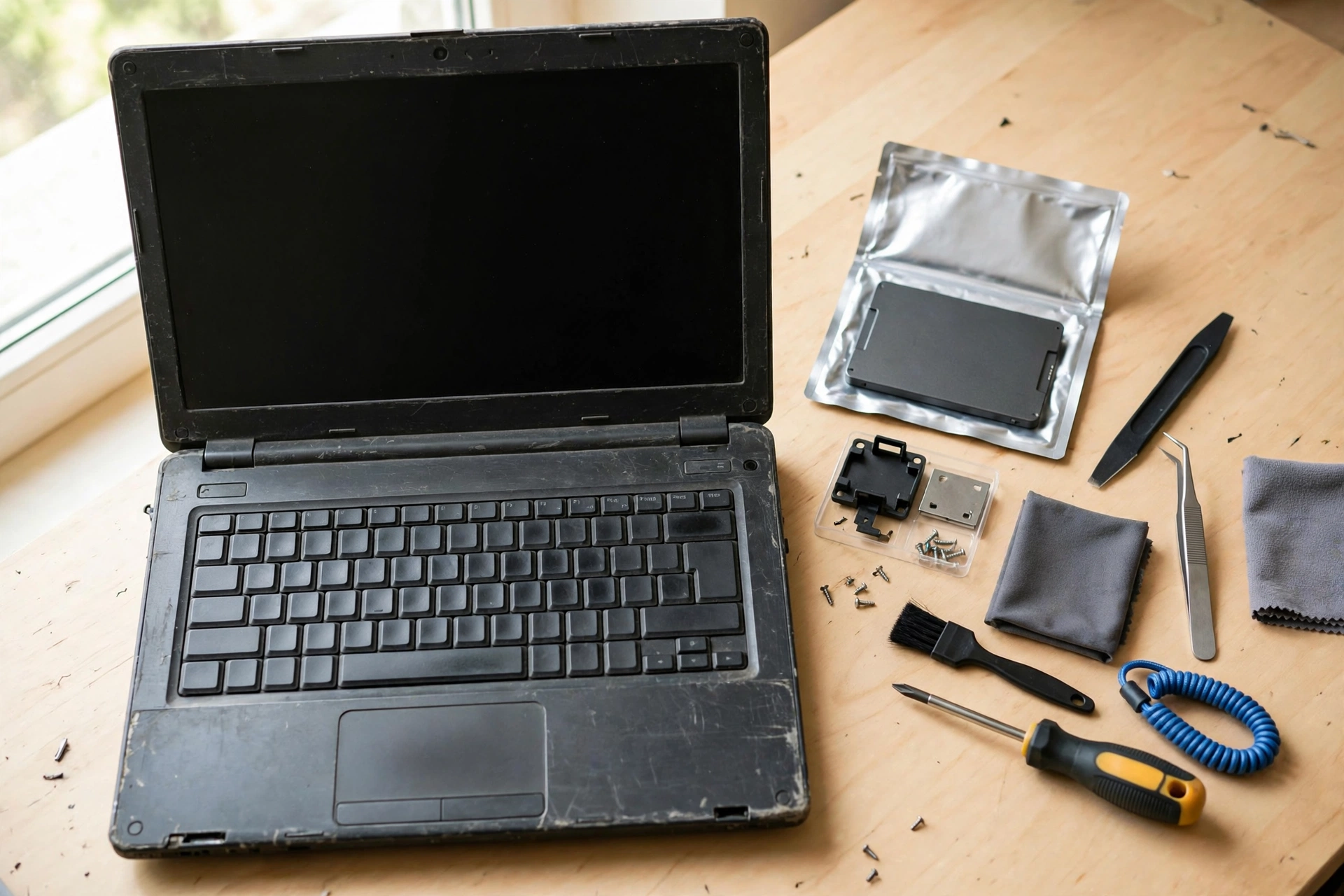
If your old laptop still uses a spinning hard drive (HDD), replacing it with a solid-state drive (SSD) is the single biggest performance improvement you can make. Boot times drop from minutes to 10–20 seconds, programs open almost instantly, and file transfers fly. An NVMe M.2 SSD is the fastest option for compatible laptops; a standard SATA SSD still beats any HDD by a mile. Prices start around $30–40 for a decent 500 GB drive.
11. Clean Out Dust and Improve Cooling
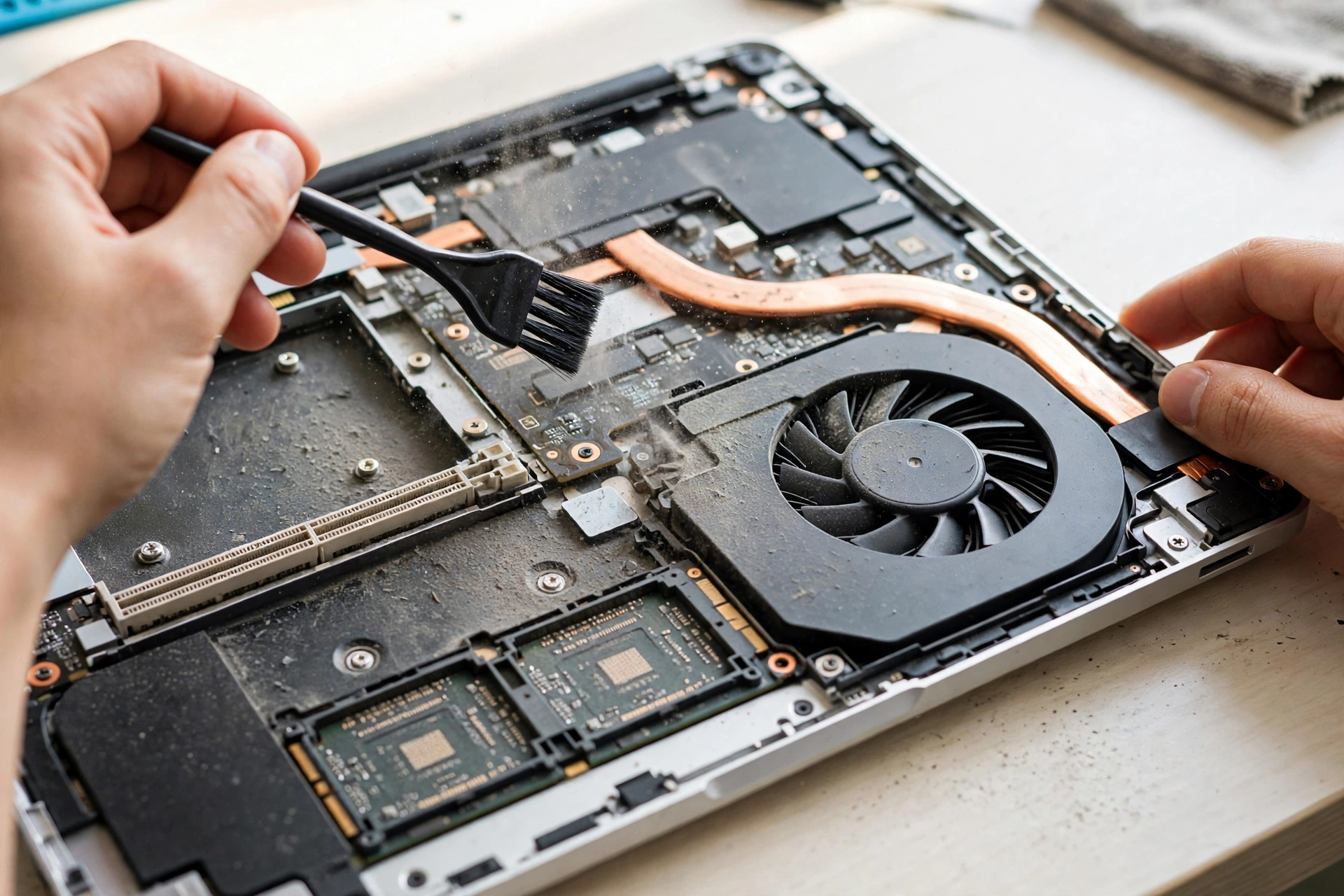
Overheating causes thermal throttling — your CPU deliberately slows down to avoid damage. If your laptop’s fans are loud and the bottom runs hot, power it down and blow compressed air through the vents. On older laptops, replacing dried-out thermal paste makes a huge difference, though that’s best left to a repair shop if you’re not comfortable opening the machine.
12. Reset or Reinstall Windows
If nothing else works, a clean install wipes out years of accumulated clutter. Go to Settings → System → Recovery → Reset this PC and choose “Keep my files” to refresh Windows while preserving personal data. Back up anything important first — and note that you’ll need to reinstall your programs afterward. Most users report their old laptop feeling brand new after a reset.
Frequently Asked Questions
Why is my old laptop so slow?
The most common causes are too many startup apps, a full or slow hard drive, insufficient RAM, outdated drivers, and accumulated bloatware. In many cases, Microsoft notes that simply upgrading an HDD to an SSD or disabling startup apps resolves most slowness.
Will more RAM make my old laptop faster?
Yes, if you have 4 GB or less. Upgrading to 8 or 16 GB reduces disk swapping and lets you run multiple apps smoothly. It’s cheap (~$40 or less for DDR4) and one of the best value upgrades.
Is an SSD upgrade worth it on an old laptop?
Absolutely — it’s the single most transformative upgrade. Boot times drop from minutes to seconds and everything feels dramatically faster, even on a five-year-old machine. A 500 GB SATA SSD costs around $30–40.
Should I turn off visual effects in Windows 11?
On older hardware, yes. Windows 11’s animations and transparency effects consume CPU and GPU resources. Selecting “Adjust for best performance” in Performance Options gives an immediate responsiveness boost, especially on machines with under 8 GB of RAM.
How often should I restart my old laptop?
Many people leave laptops running for weeks. Restarting clears RAM, stops runaway background processes, and applies pending updates — a simple restart often provides a noticeable speed boost.
When should I just buy a new laptop instead?
If your laptop is 7+ years old, has a CPU that can’t handle modern software, or needs multiple expensive repairs (screen, battery, motherboard), replacement makes more sense. But if it’s just slow, the upgrades in this guide will likely buy you 2–3 more years.
Conclusion
Knowing how to speed up an old laptop comes down to a handful of high-impact moves: kill the startup bloat, clean the disk, trim the visual effects, and — above all — swap that spinning hard drive for an SSD. These tweaks cost little or nothing and can easily give a sluggish machine several more productive years.
And if you’re treating yourself to new gear while you tune up the old machine, read our roundup of the best budget wireless earbuds — great sound for under $100 pairs perfectly with a freshly fast laptop.